
Last updated and reviewed: September 2023
Time needed to execute: 10-15 minutes
Skill level: Beginner
Why do you need a GA4 Test Property?
A testing view is a great way to experiment with features without impacting your primary report because if you decide to change a setting in your original GA4 property, you will permanently alter the way the data is collected, processed, and reported in your reporting view.
How do I set up a GA4 Test Property?
Every change you make can permanently change your current analytics data. Therefore you should create a separate GA4 testing property.
Follow these steps to create a test property on Google Analytics 4:
- Go to your existing property and click “Admin”.
- Click on “Create Property”.
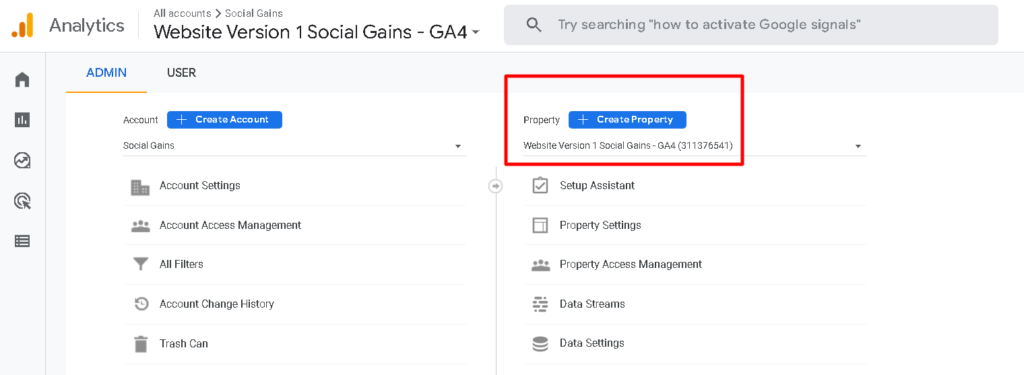
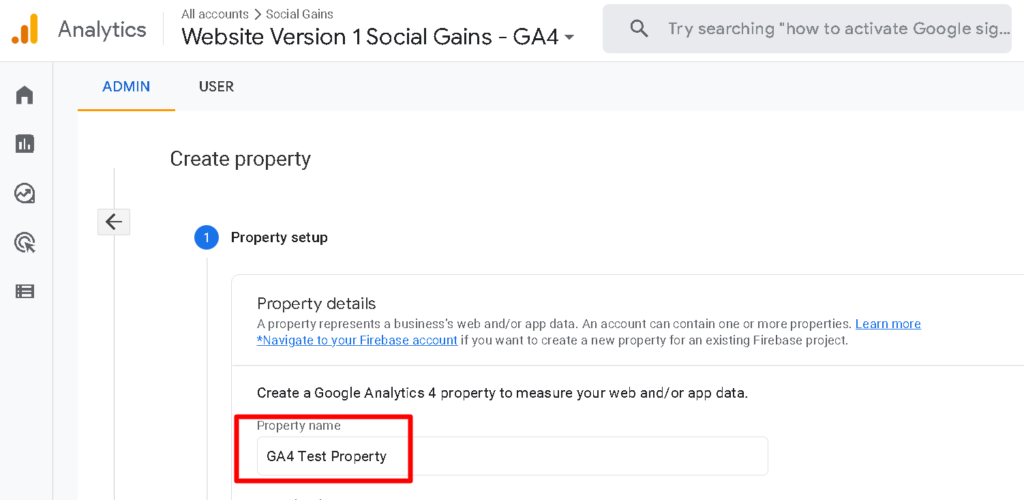
3. Give your test property a name.
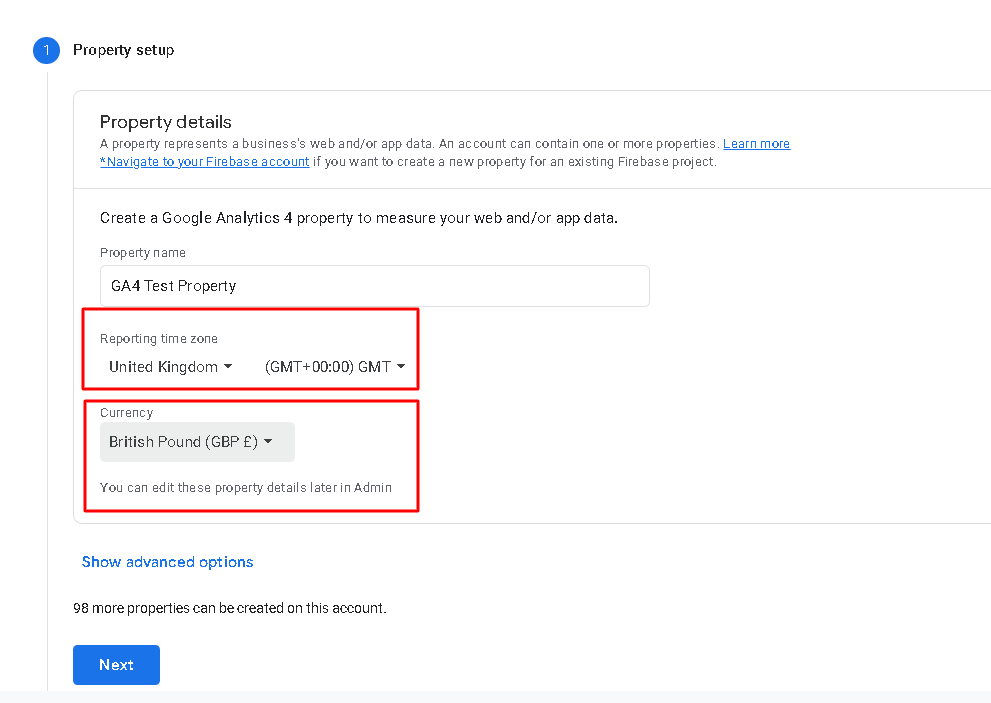
4. Select the timezone and currency and click “Next”.
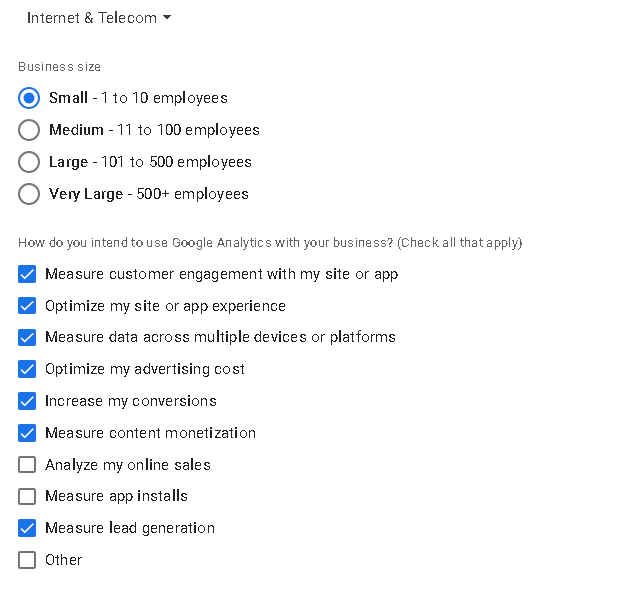
5. Select the industry category/business size and specify how you intend to use GA and then click “Create”.
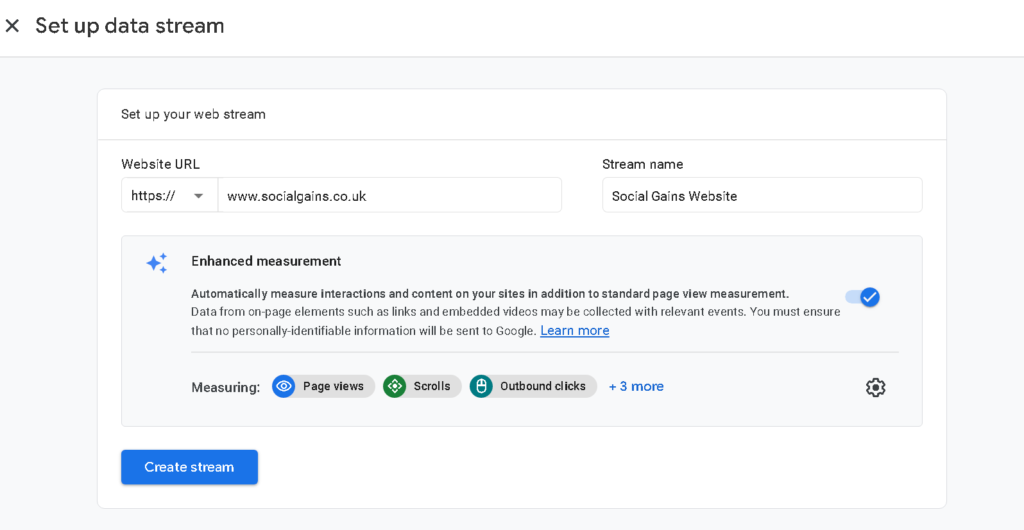
7. Enter the URL and the stream name and click “Create Stream”.
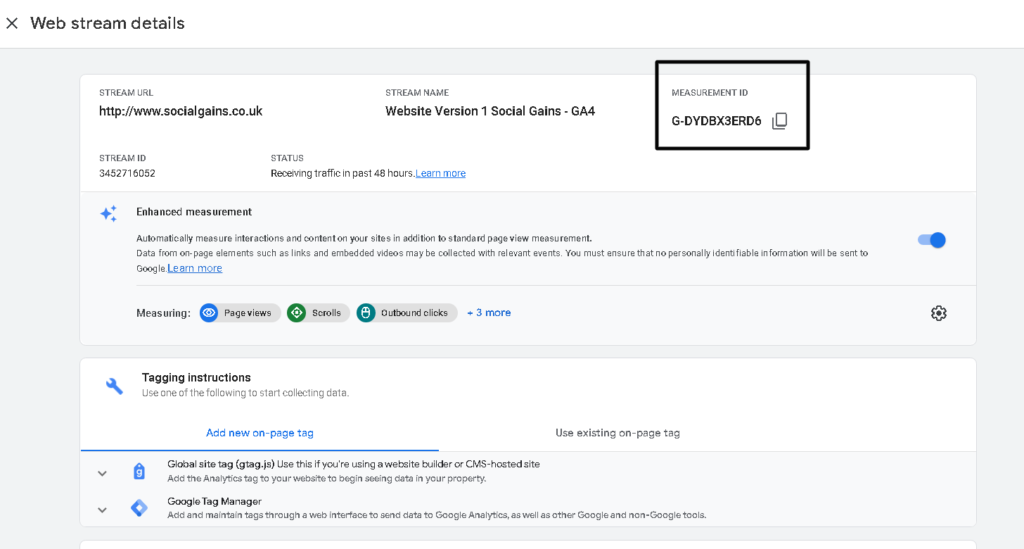
8. Copy the measurement ID and head over to Google Tag Manager.
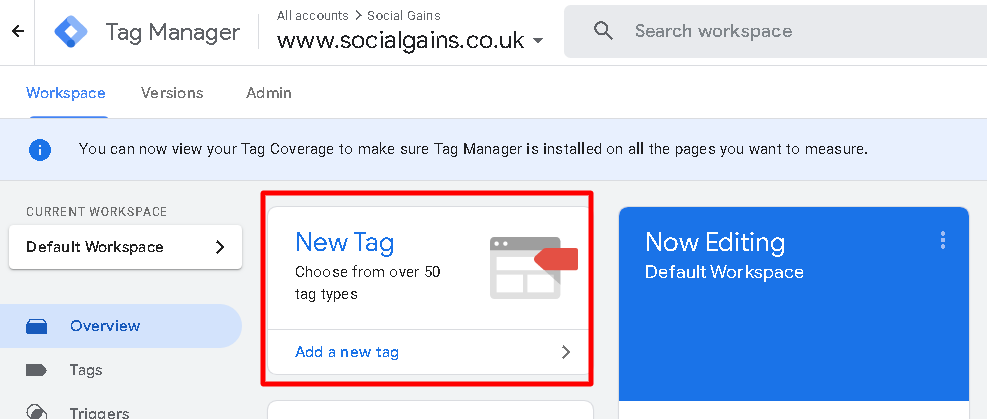
9. Click on “New Tag”.
10. Give your tag a name, e.g. “GA4 Test Property”
11. Choose the tag type “Google Analytics GA4 Configuration”.
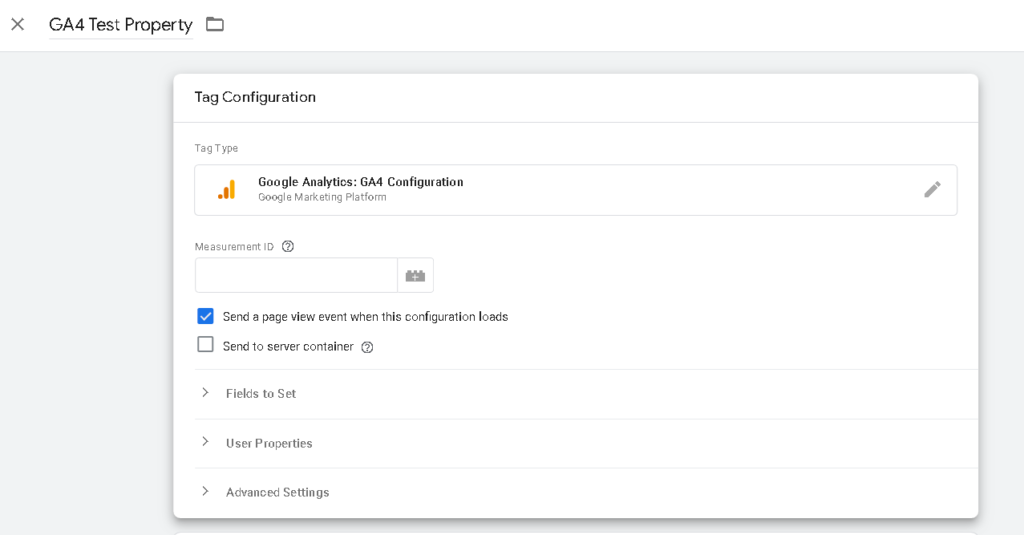
12. Paste the “Measurement ID”.
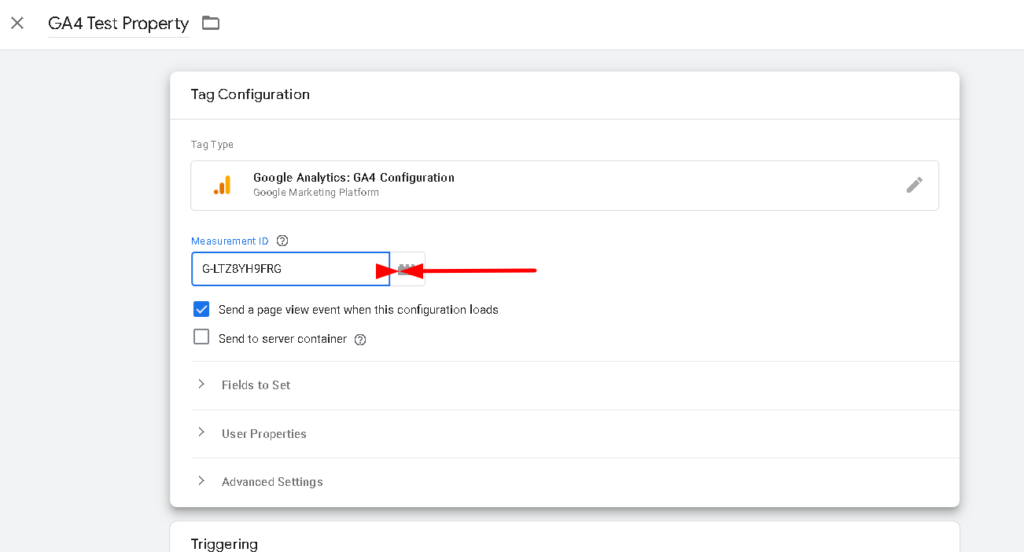
13. Choose “Triggering select All Pages”.
14. Click “Save”.

Scale your business like an 8- or 9-figure company with AI systems.
I’m inviting the first few members in free for life as “founding members“. Learn how to scale your business like an 8- or 9-figure business, dominating search engines and capturing demand.
If you want in, get access to proven AI marketing and sales techniques that drive real results.. Join our free AI Skool group today.
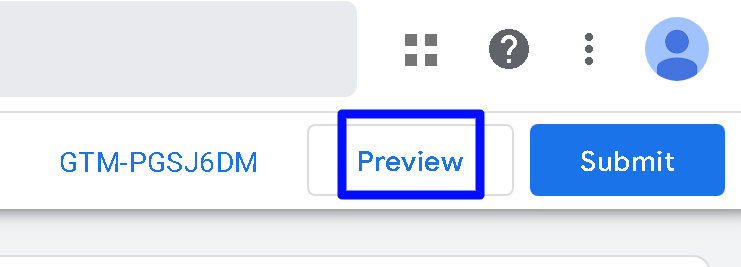
15. Click on the “Preview” button on the top right-hand side
16. Enter the website url and then click on the “Connect” Button.
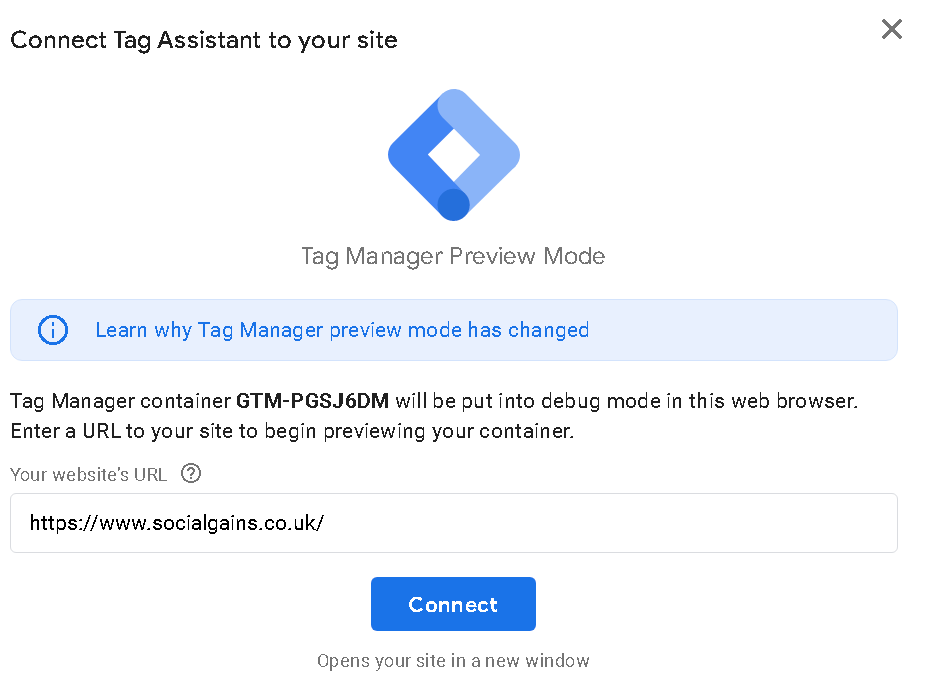
17. Once you click on the Connect Button, a new tab opens up and shows your website.

18. Switch back to your browser that shows your Google Tag Manager preview mode window and click the continue button.
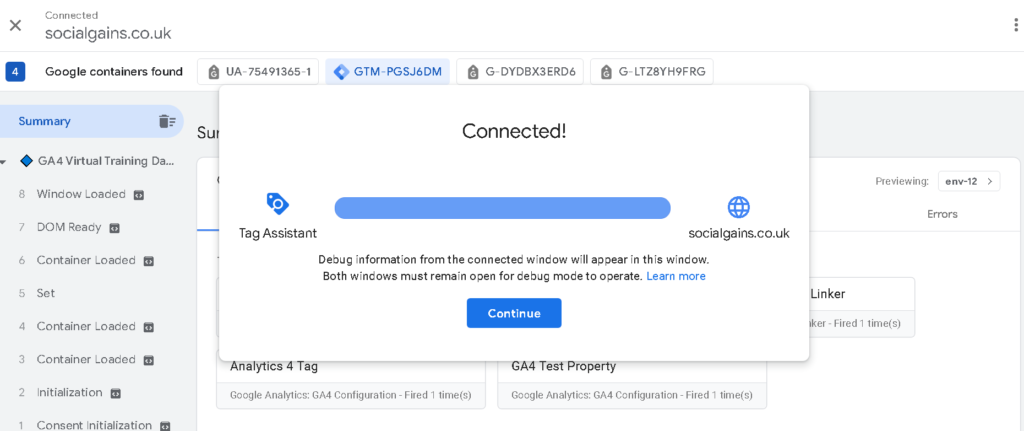
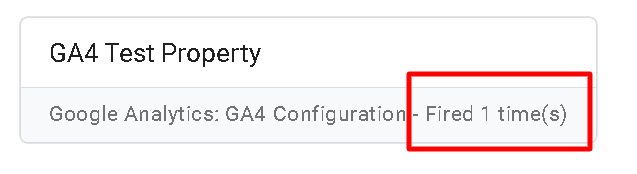
19. If you see your tag “GA4 Test Property” listed under the tags fired section then it means your GA4 test property is firing on your website.
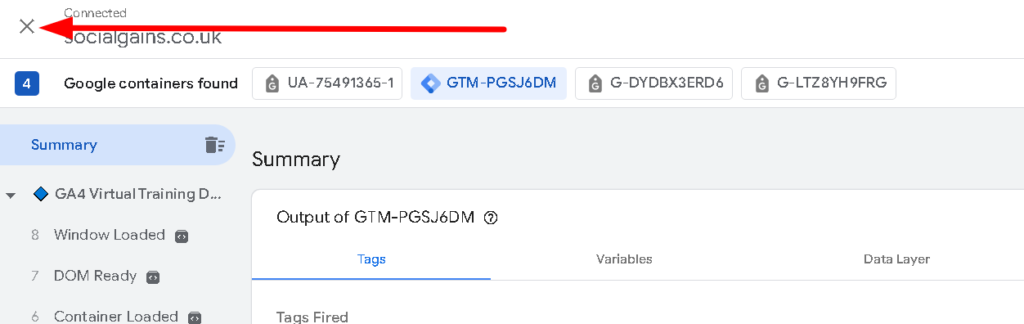
20. Click on the button in the top left to stop debugging.
21. Click Submit
22. Give your version a descriptive name and then click on the “Publish” button

23. Go back to your website and click on a couple of pages.
24. Wait for at least 30 minutes.
25. Navigate to the real-time report of your GA4 Test Property.
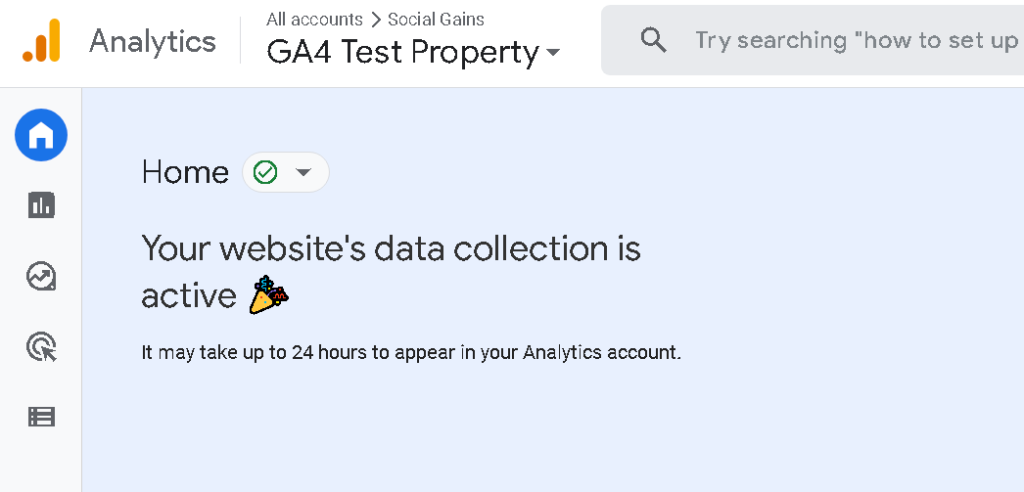
26. This proves whether data is flowing in your GA4 Test Property.
📌 Pro Tip: Copy all the configuration settings that you using in your live GA4 property to your test GA4 property. For example, if you have enabled Google Signals for the live GA4 property then enable Google Signals for your test GA4 property
Key Takeaways
- Consider how data is being sent to the Test property i.e if you use GTM, set up two GTM containers, one for each website i.e staging website, and the live website.
- Click here to download a handy chrome extension tool to debug known issues.
- Set up the GA4 Test property to stop test data from contaminating your production account.
Any issues or updates please send them to support@socialgains.co.uk. Remember it’s best practice to set up a GA4 test property for every business, you’re playing with fire 🔥🔥🔥 if you opt (rush) your GA4 implementation directly without a proper testing procedure in place.
FAQ’s


